Web application · Insect farming

MealwormCi: Mealworm Production Management

Mealworms and superworms are raised in boxes or drawers on racks; as a facility grows, it gets harder to track each box's stage and when it needs sorting or weighing. MealwormCi is the production management app we built from scratch for these facilities. The farmer signs up with an email address, a five-step wizard gets to know the facility and builds its rack and box map. From then on, the app works out each day's tasks by itself from the boxes' stages and dates: sorting, transferring, frass, weighing, feeding, collecting pupae, harvesting. Staff join with an invite code and see their own task list on their phone; when they tick a task, who did it and when is recorded. Take a photo of a box and AI reports its stage and any problems. Feed stock, outputs and sales, profit and loss, a production reserve and a link to the PoultryCi chicken app all live in the same dashboard.
  • HTML, CSS and plain JavaScript without libraries
  • Supabase Auth (email and password sign-in)
  • Supabase Postgres with row level security, database functions and triggers
  • Supabase Storage (private photo bucket)
  • Supabase Edge Function and Claude (photo analysis)
  • SVG charts without libraries
  • Netlify
Overview: production capacity and how the live stock is split
Species
Mealworm (Tenebrio molitor), superworm (Zophobas morio)
Setup
5-step wizard, rack and box map, custom code pattern
Team
Owner, manager, staff; joining with an invite code
Daily tasks
Generated from stage rules; who did it and when is recorded
Photos
AI detection of stage, density, frass, mould and mites
Production
Feed stock, sales, profit and loss, reserve, PoultryCi link

The screenshots were taken from a local copy of the app, with the database answering with fictional sample data. Business and personal names, the email, box codes, stages, weights, feed, sales and cost amounts, the number of chickens and the dates are examples.

01

Account, sign-in and password

The farmer signs in with their own email address. Sign-in and sign-up are two tabs on the same screen; below the sign-up form it says in advance which questions will follow. All messages are in plain Turkish.

  • Sign-up: full name, email and a password of at least 8 characters; Sign in and Sign up tabs
  • If email confirmation is on, the confirmation link takes the farmer straight to the setup wizard; if it is off, the wizard opens right after sign-up
  • Forgot password: a reset link is sent by email, and returning through the link opens a "Set a new password" screen
  • For security the app never reveals whether an account exists: "If an account is registered to this email, a reset link has been sent"
  • An expired or already used email link is explained clearly and the farmer is sent back to the sign-in screen
  • The system's English error codes are turned into plain Turkish sentences: wrong password, unconfirmed email, address already registered, weak password, too many attempts, no internet connection, session expired
  • The session is kept in the browser and renewed automatically before it expires; the farmer does not have to sign in every time
  • Page protection: visitors who are not signed in go to sign-in, those who have not finished setup go to the wizard, the rest go to the dashboard; the dashboard does not open before setup is done
  • The wizard greets the farmer by name (for example "Welcome, Ahmet!"); the business name appears in the dashboard header and the browser tab
Sign-in and sign-up screen, Sign up tab
02

A setup wizard that gets to know the facility

A new farmer goes through five short steps before reaching the dashboard. A progress bar fills at the top with a "Step 2 / 5" counter, with Back and Continue buttons below. The first two steps learn the species, the physical layout and the current stock of the facility. Wherever an answer is unknown there is an "I don't know" option; the app never guesses.

  • Step 1: an optional business or facility name and the species raised: mealworm (Tenebrio molitor), superworm (Zophobas morio) or both
  • Step 2 first asks whether there is a rack system: "No racks yet" (for a farmer starting in boxes, containers or trays and adding racks later; 1 to 200 boxes or containers) or "I have a rack system"
  • With a rack system: number of racks (units) from 1 to 500, boxes (drawers) per rack from 1 to 200 and the number of boxes in use right now
  • Total capacity is calculated while typing (for example "12 racks × 20 boxes = 240 boxes"); boxes in use cannot exceed capacity
  • If both species are raised, the wizard asks whether the boxes are kept on separate racks by species or mixed on the same rack
  • If racks are separated by species, each rack's species is chosen one by one; if they are all the same, "All Tenebrio" and "All Zophobas" shortcuts fill the list in one tap
  • Racks with no species chosen are listed by number
  • Box size is entered as width × length × height in cm, with a decimal comma accepted; if unknown, "I don't know the dimensions yet" can be ticked
  • Current stock (approximate, optional): count, total weight (kg) and the stage most of it is in; once count and weight are entered, the average weight per insect is calculated
Wizard step 1: business name and species
Step 2: rack system, rack and box layout, species per rack and current stock
03

Box codes, production purpose and review

Step three sets the code of every box; the app follows whatever system is already written on the facility's boxes. Step four learns what the product is for and who it is sold to. The last step shows all answers in one table. On saving, the facility record and the whole rack and box map are created together in a single transaction; an interrupted save never leaves half a map. When the facility grows or shrinks, setup can be opened again.

  • Ready-made patterns: R1-B01 (recommended, short and sortable), Raf-1 / Box-1 (written out), 1.01 (rack.box); without racks, K01 and Kutu-1
  • "My own system" for a custom pattern: {R} rack number, {K} box number, {KK} two-digit box number (01, 02...); for example A{R}-K{KK}
  • A preview shows the codes of the first boxes and the last box while typing
  • A pattern that gives two boxes the same code is caught: with {R}{K}, box 11 on rack 1 and box 1 on rack 11 both become "111"; the app shows the example code and asks for a separator
  • A warning appears if the pattern lacks the rack and box numbers or is outside 3 to 40 characters
  • Step 4: ten production purposes are chosen as chips, more than one allowed: live feed, dried larvae, protein / larva meal, pet shop sales, fishing / aquarium, poultry feed, reptiles / exotic animals, hobby breeding, frass (fertiliser) sales, other
  • The target audience note is optional; if "Other" is chosen it becomes required and the field label says so itself
  • Summary table: business, species and rack arrangement, species split across racks, layout and capacity, boxes in use, box size, current stock, first and last box code, production purpose, target audience
  • Every step is checked; if there is more than one problem they are shown as a bulleted list in Turkish
  • Before saving all steps are checked again; if one has a problem, the app takes the farmer back to that step
  • Unfinished answers are kept in the browser as a draft for that user; even if the page is closed or reloaded, the farmer continues from the same step
  • On the dashboard, "Edit setup details" opens the wizard with the earlier answers filled in and states upfront that boxes with records will not be deleted
  • If the facility shrinks, only empty boxes are removed; if a box with records would fall outside, the change stops and the boxes concerned are named
  • If the code pattern changes, every box moves to its new code and the information entered for the boxes stays in place
Step 3: custom code pattern, live preview and duplicate code warning
Step 4: production purpose chips and target audience note
Step 5: review and confirmation table
04

Team, roles and the staff screen

A facility is rarely run by one person; MealwormCi was built to be used by a team. Everyone signs in with their own email, and what they see depends on their role.

  • Three roles: the owner sees everything, changes team roles and edits the setup; a manager uses the whole dashboard but cannot change roles; staff see only the daily tasks and the boxes
  • Staff cannot see sales, costs, feed purchases or settings; this is enforced in the database, not just on screen
  • Invite code: a manager creates and copies a code in the Team tab; a staff member signs up with their own email, enters the code and the name to show in the list under "Join with an invite code", and joins the team without any setup
  • Generating a new code makes the old one invalid; people already in the team are not affected
  • In the team list the owner can make a staff member a manager or a manager staff, remove someone from the team or bring them back
  • After signing in everyone lands on their own screen: staff go straight to the staff screen, managers and the owner to the dashboard
  • The staff screen is made for phones: two tabs (Today's tasks, Boxes), a filling progress bar, large tick buttons
  • Tapping a box shows staff the actions that fit its stage: feed, weigh, sort and transfer, sift frass, separate pupae, harvest, move beetles, leave a note; starting an empty box is left to a manager
  • Managers can switch to the staff screen from the dashboard with one tap
Staff screen: today's tasks on a phone
05

Daily tasks that appear by themselves

For every box the app keeps the stage, the date it entered that stage, the batch (laying) date and the last weighing, sorting and frass dates. When the page opens, it generates the day's tasks from this data and the stage rules; it never opens the same task twice, and a task that is no longer needed drops off when the box changes.

  • Adult boxes: sort the beetles into an empty box (the old box becomes an egg box); a warning when the beetles reach the end of their productive life
  • Egg boxes: the day for the first wet feed and the day to move to the growth stage
  • Growth boxes: frass sifting and weighing intervals, collecting pupae and ready for harvest
  • Pupa boxes: moving the hatched beetles to an adult box every day
  • A daily feeding suggestion for adult and growth boxes: dry and wet feed in grams based on the box's weight
  • Durations and feed ratios can be changed per species in Settings, and "Reset to default" restores them; superworms do not pupate when crowded, so no automatic pupa task is created for them
  • Ticking a task asks for kg, a target box or where the harvest goes when needed; the action is applied to the box and the log records who did it, with date and time
  • The list has three parts: overdue, to do today, done today; at the top a summary such as "3 / 10 tasks done" and a progress bar
  • When several feedings are waiting, "Complete the feedings with the suggested amounts" saves them all at once and deducts the feed from stock
  • Tasks can be skipped; staff must give a reason when they skip
  • A box with no stage date gets an "information missing" task; staff can pass on what they know to the manager as a note
  • Managers can add custom tasks by hand; a "Who did what today" card shows the number of tasks per person
  • The overview lists the upcoming tasks for the next 14 days
Today's task list in the manager dashboard
06

Boxes and the rack map

The Boxes tab is the facility's map, rack by rack. Each box appears with its own code, a drawing and colour for its stage, and a bar showing how close the next important date is.

  • Filter chips with counts: all, egg, growth, pupa, adult, empty, tasks waiting
  • Each box card shows the weight, how many days it has been at that stage, the batch age and the next target: next sorting, move to growth, harvest, beetles hatching
  • Boxes with a waiting task show the task name in red
  • Clicking a box opens its details: action buttons for its stage, its waiting tasks, photos and history
  • A manager starts an empty box with "Start box" (stage, date, kg) or corrects the recorded stage and date
  • At harvest you choose where it goes: our chickens, sale (with amount and customer) or other; "the whole box was harvested" empties the box
  • If a single container and a single stage were declared during setup, that box's stage is filled in from the start
  • The owner reopens the setup with "Edit rack / box layout"; records are kept
  • On a phone the cards drop to one column, handy while walking around the facility
Boxes: filters and the rack map coloured by stage
Boxes on a phone
Boxes on a phone
07

Stage detection from a photo

Box details have an "Inspect with a photo" button, and the Boxes tab has "Stage detection from a photo". On a phone the rear camera opens, or a photo can be picked from the gallery; AI looks at the photo and reports the state of the box. Both managers and staff can use it.

  • The photo is shrunk in the browser before upload (1600 pixels on the longest side)
  • The result: stage (egg, growth, pupa, adult, mixed or undetermined) with a confidence level, species, stage mix, larva size, density, frass, moisture, mould, mites, dead insects, a description and suggestions
  • If the recorded stage contradicts the photo, a manager updates it with one tap
  • Action suggestions from the photo: "Separate pupae" when pupae show up in a growth box, "Move beetles" when beetles show up in a pupa box, "Sift frass" when there is a lot of frass
  • Each box's photos and analyses are kept in its history; managers see analyses made by staff too, and they are written to the activity log
  • Photos sit in a storage area private to the business that no other business can see; they are shown through short-lived links, and only managers can delete them
  • The analysis runs on the server; at most 60 analyses per business every 24 hours
  • The screen says it plainly: this is an AI estimate, the farmer makes the decision
08

Production capacity and the PoultryCi chicken link

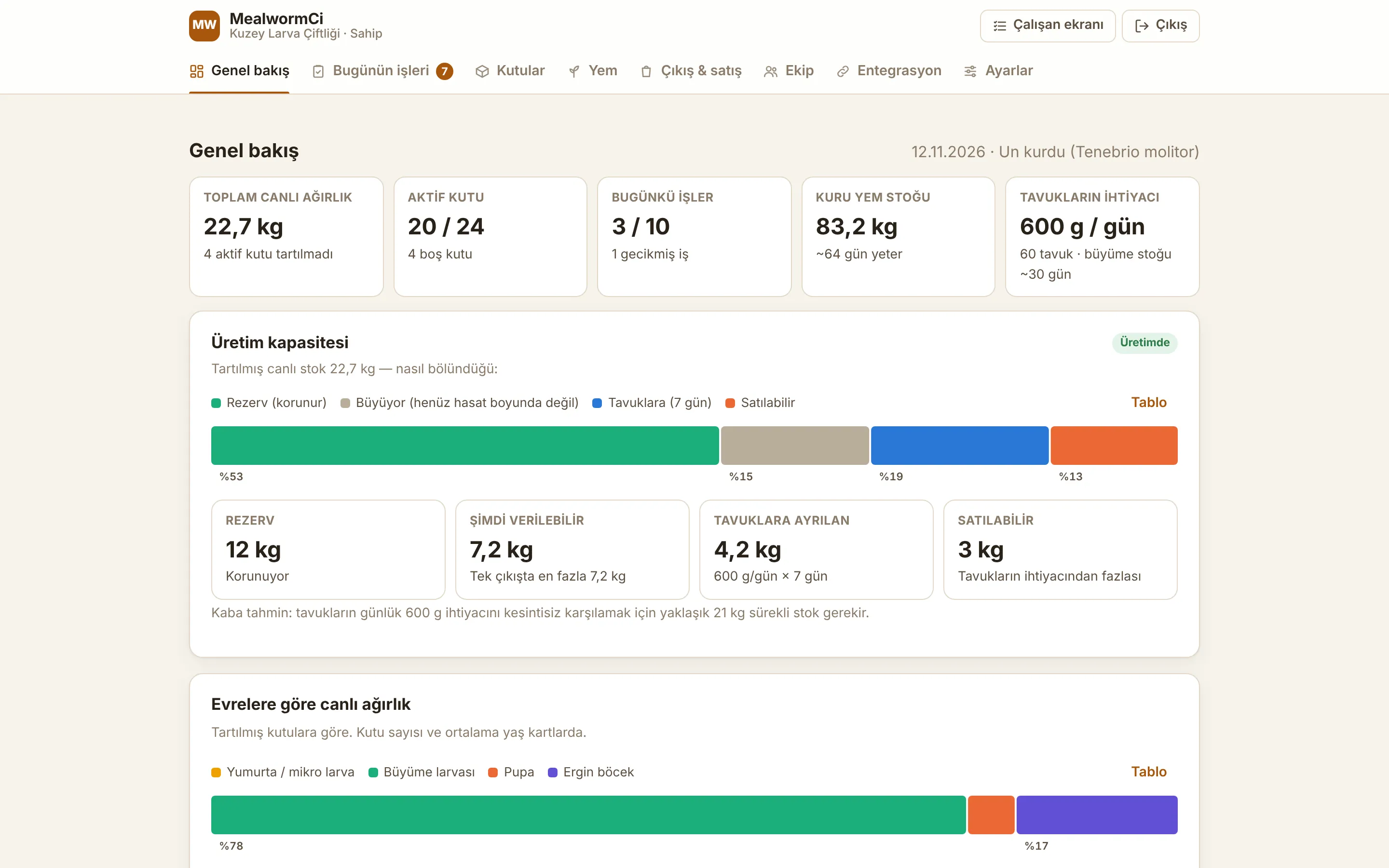
If all the larvae go to the chickens or get sold, production stops. A manager enters three values in Settings, and the app works out how much of the live stock must be kept and how much can be given out. The larvae go first to the business's own chickens. MealwormCi connects to PoultryCi, Collapssi's chicken management app, with one tap, so the two apps share data without entering it twice.

  • Reserve (kg): the minimum live stock that always stays on hand; no harvest or output can take the total below it
  • Starting target (kg): until the total live stock reaches this amount for the first time, the farm is in a growing period; feeding chickens and live sales are locked, and the date is recorded once it is reached
  • During the growing period no "ready for harvest" task appears and the harvest window is closed; the larvae pupate and go to breeding
  • Days to set aside for the chickens: that many days of the chickens' needs are reserved from the available stock, and the rest shows as "sellable"
  • The overview shows how the live stock is split in a coloured bar: reserve, growing, set aside for chickens, sellable; plus the most that can go out in one output
  • The rule is enforced in the database: both harvesting from a box and outputs entered by hand go through the same check
  • A suggested reserve is roughly worked out from the chickens' daily needs and shown; the growing period can be restarted if needed
  • "Connect to PoultryCi" in the Integration tab finds or creates a "Mealworm (MealwormCi)" feed card on the owner's PoultryCi farm
  • A "Harvest, our chickens" entry from a box, or a chickens entry in Outputs and sales, adds the kg to PoultryCi's feed stock; if the record is deleted, the entry there is reversed as well
  • The number of chickens is read from the active groups in PoultryCi; the daily larva need is chickens times grams per chicken (10 g by default, adjustable)
  • The dashboard shows the chickens' daily need, how many days the growth stock will last, the amount given over the last 30 days and what share of the need it covered
  • Sales are kept only in MealwormCi
Overview: the production capacity card
09

Feed stock, outputs, sales and profit and loss

Because feed, output and cost records are kept in one place, the money side of the facility shows in the dashboard too. Only the owner and managers can open these tabs.

  • Feed product cards: stock (purchases minus use, corrected by counts), average price per kg, use over the last 30 days, category need and how many days the stock will last
  • Dry and wet feed needs are worked out from the weighed boxes; the amount given at each feeding is deducted from stock automatically
  • Common feeds can be added with one tap; purchases, stock counts and deactivating are done from the card
  • Charts for monthly feed purchases and use over the last 30 days, the feed cost of the last 30 days and the feed cost per kg harvested
  • Outputs and sales: our chickens come first; a sale records the product (live larvae, dried larvae, pupae, beetles, frass), kg, amount and customer; harvests from boxes appear here automatically
  • Frass (fertiliser) stock: frass recorded at sifting minus frass that went out
  • Cost records by category: boxes and racks, equipment, electricity, heating, packaging, transport, labour
  • Weekly output and monthly cost charts, and a month-by-month table of what went to the chickens, sales income, feed, other costs and net
Feed products: stock, price and needs cards
Outputs and sales: charts and monthly profit and loss
10

Security and data accuracy

The app is built so that several businesses can use it at the same time. Each business sees only its own data, and within a business the database grants access according to who should see what.

  • Row level security by membership: the owner, managers and staff reach only their own business's data; staff cannot access sales, costs, feed purchases or settings
  • Every on-screen rule is checked again in the database: rack and box limits, 5,000 boxes in total, the code pattern and duplicate codes, valid production purposes, the reserve and the growing period; even if the browser is bypassed, invalid data cannot get in
  • Box actions (sorting, transferring, harvesting, feeding) are applied in the database in a single transaction, and the log records who did it and when
  • Photos are in private storage; only members of the business can upload and view them, and only managers can delete them
  • The AI key stays on the server and never reaches the browser; the browser holds only the public connection key
  • Security headers: file type sniffing is off, the pages cannot be embedded in other sites, the referrer and browser permissions are restricted
  • Dashboard pages are closed to search engines
11

Design, charts and dark theme

The interface was drawn for this job rather than taken from a template: earth and brown tones, simple cards, large touch targets. It was designed to be comfortable on a phone in the facility, in the evening dark as well.

  • Each stage has its own drawing: egg, growing larva, pupa and adult beetle; for superworms the drawing is a darker shade
  • A top menu with icons: overview, today's tasks (with the number waiting), boxes, feed, outputs and sales, team, integration, settings; it scrolls sideways on phones
  • Charts are drawn without libraries: values on hover, and a "Table" button on every chart showing the same data as a table
  • If the device is in dark mode, the app opens in a dark look as well; stage colours remain distinct on the dark background
  • Long dialogs scroll on screen; number fields open the numeric keypad on phones
  • Screen reader support: tabs, progress bars, status messages and form fields are announced correctly
Boxes in dark mode
Boxes in dark mode
12

What we built specifically for this business

MealwormCi is not an adapted stock or warehouse program; it was written from scratch around the daily work of mealworm farming. The data model, tasks and options use the insect farmer's own language.

  • A data model built for mealworm and superworm farming: species, rack, box, stage, batch date, last sorting, frass and weighing dates
  • A task calendar generated from stage rules: adult sorting, egg boxes, frass, weighing, pupae, harvest, feeding
  • Transfers between boxes: after sorting adults the old box becomes an egg box, pupae move to a pupa box, hatched beetles to an adult box
  • Stage, density, mould and mite detection from a box photo
  • A reserve and growing period that protect production, so the larvae are never all given away
  • A PoultryCi link and chicken share for farmers who feed larvae to their own chickens
  • A code pattern that follows the labels already on the facility's boxes, with a duplicate check
  • Its own name and brand (MealwormCi) and an earth-toned design

Planning a similar project?

Tell us what you need; we will define the scope, timeline and cost together. The first consultation is free.

Tell us about your project