Application · Poultry

PoultryCi

PoultryCi is a web application we built for farms producing table eggs, broilers, breeders and free-range poultry. After sign-up and email confirmation, the farm owner goes through a five-step setup wizard: the type of farm, the number of houses and silos, each house's capacity, housing system and automation, and finally the breed groups in each house (hens and roosters separately). The questions change with the type of farm. The dashboard opens on the Overview: hens and roosters, occupancy, today's eggs and eggs in stock, feed stock, the month's income minus expenses and house cards. Daily records, vet, feed, sales, manure, expenses, team and breeds have their own tabs. In the Vet tab a photo of a bird that looks unwell or of droppings is uploaded and AI writes a pre-assessment; employees also report problems with photos from the field.
  • HTML, CSS and JavaScript (no build step)
  • Supabase Auth (email and password sign-in, email confirmation)
  • Supabase Postgres with row level security (RLS)
  • Data checks in the database through table constraints
  • Database function that saves setup in one transaction
  • In-browser preview mode for trying it without a connection
  • Supabase Storage (private photo storage)
  • Supabase Edge Functions (Deno)
  • Structured pre-assessment of photos with Claude
  • Netlify
  • Mobile first, light and dark theme, accessible interface (ARIA)
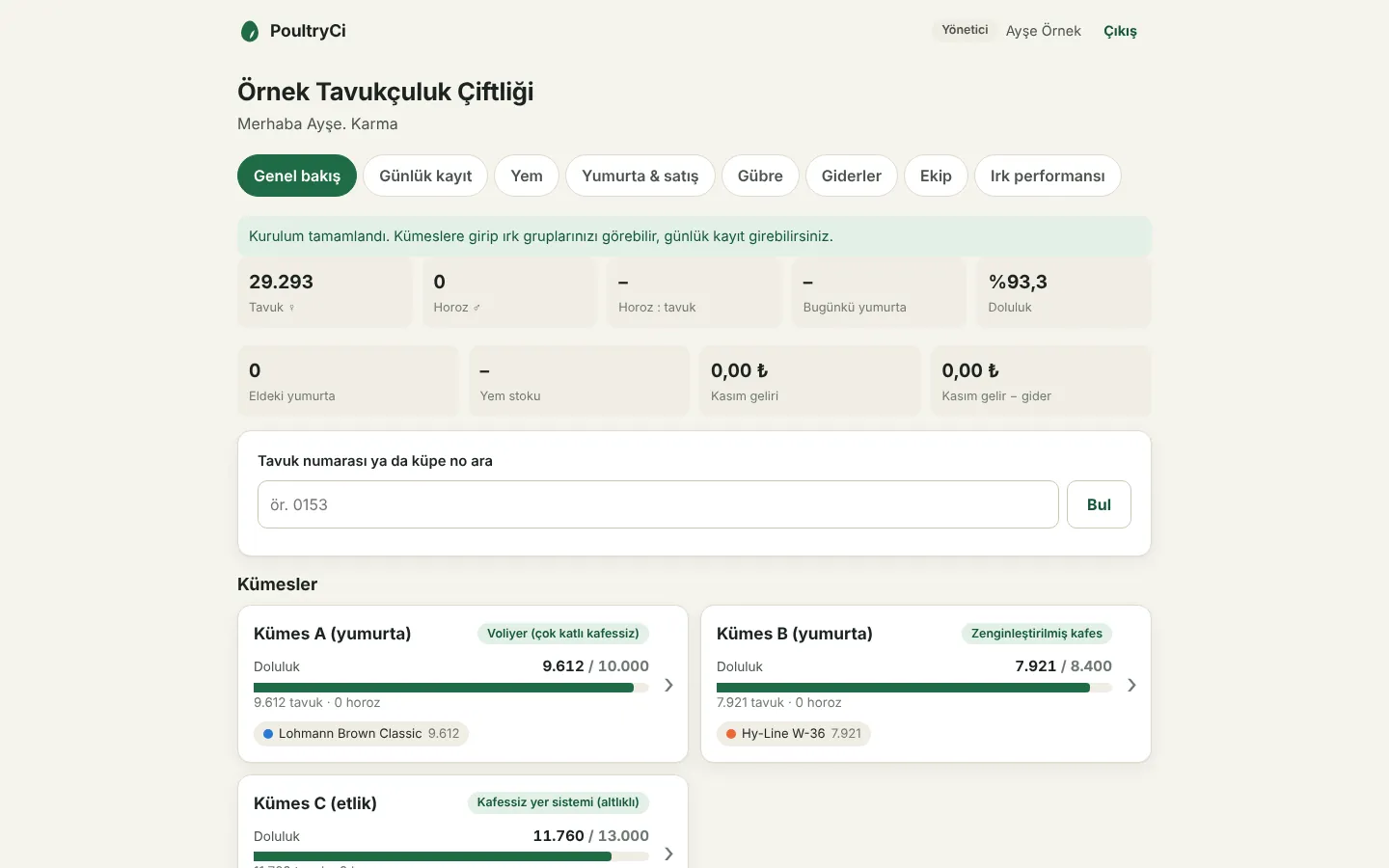
The Overview tab of the dashboard: figure boxes and house cards
For
Egg, broiler, breeder and free-range poultry farms
Account and setup
Sign-up, email confirmation, 5 steps: type, facility, houses, breed groups, summary
Houses
1 to 50, with a housing system and 6 automation questions per house
Breed groups
Ready breed cards, hens and roosters separately, placement date and age, automatic numbering
Vet
Photo-based problem reports, AI pre-assessment, health and withdrawal tracking
Security
Checks on screen and in the database; each account sees only its own farm or the farm it joined

Screenshots were taken from an up-to-date local copy of the application in offline preview mode. The farm, user, house and flock figures are fictional sample data.

01

Sign-up, sign-in and email confirmation

The farm owner signs in or creates an account on a single screen. Sign-up is kept short and states up front how long setup will take; if something goes wrong, the message explains in plain language what to do.

  • Sign in and Sign up on one screen with two tabs
  • Sign-up asks for full name, an optional phone number, email, a password of at least 8 characters and the password again
  • At sign-up the account type is chosen: a farm owner moves on to setup, an employee joins the team with the 6-character invitation code the manager gives from the Team section
  • The button reads "Sign up and start setup", with a note below that setup takes about 3-5 minutes
  • After sign-up a "Confirm your email" screen appears, with a reminder to check the spam folder if the email does not arrive
  • A user who clicks the confirmation link lands straight in the setup wizard; an expired or invalid link shows a clear warning, and for an expired link the next step is explained
  • If the session is about to expire, it renews itself on the next action; if it cannot, the user returns to the sign-in screen with a "your session has expired" message
  • Server errors become clear messages: account already exists, wrong email or password, email not confirmed, password too weak, too many attempts, no internet connection
  • The top bar shows a role badge (Manager or Employee), the user's name and a Sign out button; signing out also ends the session on the server
Sign in / Sign up screen with the sign-up form
02

A five-step setup after sign-up

Every new user completes a short setup before reaching the dashboard. A progress line at the top, and a "Step N / 5" counter on phones, show where they are. The questions change with the type of farm: a broiler farm, for example, is not asked about egg collection, and the breed list and recent yield questions depend on whether the flock is a laying or a meat flock.

  • Six production types chosen as cards, each with a short description: table eggs, broilers, layer breeders, broiler breeders, free-range / organic and mixed
  • Farm name, province (all 81 provinces, suggested as you type) and an optional district
  • Facility: 1 to 50 houses, the number of feed silos (0 if none) and total silo capacity in tonnes
  • If the number of houses changes later, the house and flock lists grow or shrink and the details already entered for the remaining houses are kept
  • For each house: name, capacity, floor area (m²) and housing system
  • The first house's system and automation choices can be copied to the other houses with one tap
  • Pressing Enter does not submit the form, it moves to the next step
  • The last step summarises everything; "Edit" buttons go back to any step before saving
First setup step: type of farm
House capacity, housing system and automation
03

Housing systems and automation options

Houses are described by the equipment actually used on the farm. The options carry short, familiar names, so the dashboard shows at a glance how each house works.

  • Housing system: enriched cage, conventional cage, floor system (with litter), aviary (multi-tier, cage-free), free range (with outdoor access)
  • Feeding: manual, semi-automatic, fully automatic (chain / spiral)
  • Drinkers: nipple, bell / round drinker, manual (bucket / trough)
  • Ventilation: natural (windows / curtains), side wall fans, tunnel ventilation, combi (minimum and tunnel)
  • Heating: no heating, stove, gas radiant heater, hot air generator, central / underfloor heating
  • Lighting: manual on-off, timer, automatic programme with dimmer
  • Egg collection: manual or automatic belt; on a broiler farm this question never appears
04

Breed groups and an age that updates itself

In the fourth step a breed group is added to each house with the + button at the top right; roosters are entered as a separate group too. Each group automatically gets a group code (e.g. K1-G1) and a range of hen numbers. The age is not stored: it is recalculated every day from the placement date and the age at placement, so it never goes out of date.

  • A house with no breed can be left empty; each group card has Edit and Remove buttons, and a warning appears if the groups exceed the house capacity
  • Ready breed cards with a drawing and a guideline summary: layer hybrids Lohmann, Hy-Line, ISA, Dekalb, Bovans and the Turkish Atak-S, Atabey; pure and local breeds Leghorn, Rhode Island Red, Sussex, Brahma, Marans, Denizli, Gerze and village hens; broilers Ross, Cobb, Arbor Acres, Anadolu-T and slow-growing breeds. A breed that is not listed can be typed in
  • The breed window opens filtered by the type of farm (Layer hybrid, Broiler, Pure and local breed, All) and can be searched; on free-range and mixed farms the app asks whether the group is a layer or a broiler group
  • For each group: hen or rooster, the placement date, the age at placement and the number of birds placed
  • Shortcuts for the age at placement: day-old chick, 16, 18 and 20-week pullet (only chick for broiler groups)
  • Today's age is shown in weeks and days as soon as the details are typed
  • Optional recent performance: for layers the daily average eggs over the last 7 days, for broilers the latest average weight and the total feed consumed
Breed groups step: group cards per house and today's age
Breed groups step, phone view
05

Double checks against wrong data

Every step is checked before moving on. If something is wrong the user sees right away what to fix; because the same rules are defined in the database, wrong data cannot be saved even if the screen is bypassed.

  • Checks for required fields, character limits, number ranges and whole numbers
  • Invalid fields are marked in red with the reason underneath; a "Fix the N marked fields to continue" banner appears at the top
  • The page scrolls to the first invalid field and places the cursor there; a corrected field's mark disappears instantly
  • Logic checks: the current count cannot exceed the placed count, and daily eggs cannot exceed the current number of hens
  • The placement date cannot be in the future or more than 5 years ago
  • The same limits in the database: 1 to 50 houses, capacity and count ranges, weigh-ins of at most 10 kg, only the listed option values
Invalid fields and the warning banner on the facility step
06

The whole farm on one screen

In the last setup step all the information is summarised house by house, and any step can be reopened and corrected. Once saved, the dashboard opens on the Overview tab; day-to-day work sits in separate tabs.

  • In the summary step each house shows its housing system, capacity and occupancy, floor area and birds per square metre, its automation list and its breed groups
  • Each group in the summary shows its group code, hen number range, current and placed count, age and losses; yield for layers, latest weight and approximate FCR for broilers
  • A warning if the current count exceeds the house capacity
  • At the top of the dashboard: the farm name, the user's name and the production type; after the first setup a "Setup complete" message
  • Tabs: Overview, Daily records, Vet, Feed, Eggs & sales, Manure, Expenses, Team and Breeds
  • The Overview shows the number of hens and roosters, the rooster : hen ratio, today's eggs, occupancy, eggs in stock, feed stock, this month's income and income minus expenses
  • Search by hen number or ear tag number: the bird's breed, house and age, and whether it is alive, died or left
  • House cards show the housing system, an occupancy bar, the number of hens and roosters and breed chips; tapping a card opens the house page
  • On the house page, breed group cards: last 7 days' yield against a guideline peak line, laying period, days left to slaughter age and latest weight for broilers, losses since placement (deaths, culls and sales together); + adds a new group, groups can be edited and a photo can be uploaded for each breed
Setup summary step: Edit buttons and farm figures
House and breed group cards in the setup summary, approximate FCR for the broiler group
07

Vet: photo-based problem reports and an AI pre-assessment

For a bird that looks unwell, droppings, litter or eggs, a photo is taken and uploaded. AI looks at the photo together with the house's records and writes a pre-assessment; the final diagnosis and any medication are left to the vet. Employees can also report problems from the field in their own dashboard.

  • A report is opened with the + button in the Vet tab or with "Report a problem with a photo" on a hen's card
  • The subject is chosen (hen, droppings, house / litter, eggs, other), and for each one the screen explains how to take the photo
  • On a phone the camera opens directly, or up to 3 photos are picked from the gallery; photos are resized before upload and kept in private storage
  • House, group and hen number are optional; when a number is typed, the house and group are found automatically, and symptoms are ticked from a ready list
  • AI reviews the photos together with the breed, age, current count, the last 14 days of deaths, eggs and feed, and earlier assessments of the same group
  • The result gives a summary, urgency, what is visible in the photo, possible problems, what to do (now, today, this week, watch), whether a vet is needed and what would help a better assessment
  • It is a pre-assessment and names no medicine or dose; if avian influenza or Newcastle disease is suspected, a red warning appears with a step to notify the provincial or district agriculture and forestry office
  • Follow-up: status (open, monitoring, recovered, died, closed), the vet's note, treatment and the end of the medicine withdrawal period; choosing "died" can remove the hen from the group's count
  • While a withdrawal period runs, the Overview and the sales page warn that eggs and meat must not be sold
  • The number of analyses is limited in the database: a daily allowance per report and per farm
  • An employee reports a problem with photos from their own dashboard and sees the AI result and the manager's note under "My reports"
  • The employee's report lands on the manager's Vet page with a "Reported by" label, the Overview shows a banner of open reports that disappears once the status is "Monitoring"; only the manager changes the status, medication and withdrawal
The "Report a problem with a photo" form in the Vet tab: subject, photos, house, group, hen number and symptoms
Photo-based problem report form, phone view
08

Leg ring plan: group colour on the left, number on the right

To recognise birds in the house, each hen gets her group's colour on the left leg and a numbered ring with her PoultryCi number on the right. The leg ring plan page sets which colour goes to which group, how many rings to buy and the ringing itself; it also prepares for the planned camera system.

  • Opened with the "Leg ring plan" button on the house page; a colour is chosen for each breed group: red, blue, green, black, white, yellow, orange, purple, pink
  • "Assign colours automatically" gives groups without a colour the easiest-to-tell-apart colours first
  • A warning appears if two groups get the same colour or if yellow (hard to see) or orange, purple or pink (easily confused with red or blue) is chosen
  • The number of rings to buy per colour and of numbered rings is calculated with about 10% spare
  • Hen-by-hen ringing list: each box is ticked as the ring goes on; numbers marked as dead or removed are left out
  • "Print" gives an A4 printout
  • The group's colour shows on the group card, the hen's card (left and right leg) and in the group list of the problem report form
Leg ring plan: colours assigned to groups and each group's number range
Rings to buy and the hen-by-hen ringing list
09

Secure accounts and a setup that is never lost

The application protects what the user has entered at every step, and the database accepts only a setup that is correct as a whole. Who can see which record is decided in the database itself, not in the browser.

  • The dashboard cannot be reached before setup is complete; an unfinished setup reopens at the next sign-in
  • Answers are saved step by step as a draft in the browser, separately for each user, and survive a page refresh
  • Setup is saved in a single transaction: all of it or none; the account is locked while saving, so it cannot be submitted twice
  • Row-level security: each user sees only their own profile, farm, houses and breed groups; an employee who joins a team can only read the farm they belong to
  • A house can only be linked to the user's own farm and a flock only to the user's own house; visitors who are not signed in have no access at all
  • The application contains only the public connection key; the save function runs with the user's own permissions and no admin key is used
  • Before a connection is set up, sign-up, setup and the dashboard can be tried in the browser in preview mode; a banner at the top says so, and passwords are not kept in plain text
10

Easy on the phone, readable in dark mode

Farm owners mostly open the application on their phone, in the poultry house. The interface was designed for phones first and with screen reader users in mind.

  • Mobile-first layout; the setup's Back and Continue buttons stay fixed at the bottom of the screen and stretch to full width on phones
  • Light and dark theme, chosen automatically from the device setting
  • On wide screens the top menu shows every tab and wraps to a second line if needed; on a phone the selected tab stays in view and the scrollable edge fades out
  • Space is left for the iPhone notch and home indicator, so buttons are never covered
  • Transition effects are turned off on devices set to reduce motion
  • Screen reader support: field descriptions and linked error messages, live-announced age, the current step marked in the progress indicator, tab roles, required and optional labels
  • A leaf and egg shaped logo with a green theme colour
Setup summary on a phone in dark mode: broiler group card and approximate FCR
11

What we built specifically for poultry farms

We did not build the application as a generic record keeper; we built it around how poultry farms in Turkey actually work.

  • Six production types that match Turkish poultry farming: table eggs, broilers, layer and broiler breeders, free-range / organic, mixed
  • Turkish breeds are on the list: Atak-S, Atabey, Anadolu-T, Denizli, Gerze and village hens; slow-growing broiler breeds (Hubbard JA757, Sasso, Redbro)
  • Shortcuts for 16, 18 and 20-week pullets and 0 days for day-old chicks
  • The flock age is never stored, it is recalculated every day from the placement date and age at placement
  • The egg collection question is hidden on broiler farms; yield fields change with whether the flock is a laying or a meat flock
  • Approximate FCR for broiler groups: total feed / (current birds x latest weight); shown in the setup summary
  • The dashboard states clearly that the decline covers deaths, culls and sales together
  • Real automation options from the field: chain / spiral feeding, nipple drinkers, tunnel and combi ventilation, gas radiant heaters, dimmable lighting programmes, automatic egg belts
  • A preview mode that can be shown to the customer before the database is connected
  • Tables carry their own prefix, so they can be added to an existing database project; it is published without a build step
12

Next steps

The following are planned but not available yet. 24/7 camera monitoring with ear tag recognition and the mealworm integration appear at the bottom of the dashboard with a "Coming soon" note.

  • 24/7 camera monitoring and recognition by ear tag number
  • Vaccination and medication calendar
  • Mealworm integration
  • Password reset
  • Privacy notice (KVKK) and explicit consent at sign-up

Planning a similar project?

Tell us what you need; we will define the scope, timeline and cost together. The first consultation is free.

Tell us about your project