Client project · Beach and cafe

Çerkez Plaj Cafe

We created both the logo and the app for Çerkez Plaj Cafe, and built the app from scratch around how a beach day actually runs. A guest scans the QR code on their sunbed or table; the menu opens with that spot already selected, they fill the basket and send the order. At the same moment the order is announced on the business's phone with a chime that rings three times, an on-screen banner and a notification. Staff switch to the management panel through a hidden entrance in the same app: they prepare orders, record counter sales and rents, open and close sunbed and table bills, put guests who pay later on customer accounts, track the front and back stock by batch and expiry date and the toast ingredients by recipe, and see the daily takings. The app can be installed on a phone and every device sees the same information instantly.
  • React
  • Supabase (Postgres and real-time sync)
  • PWA (installable, notifications)
  • QR code generation
  • Cloudflare
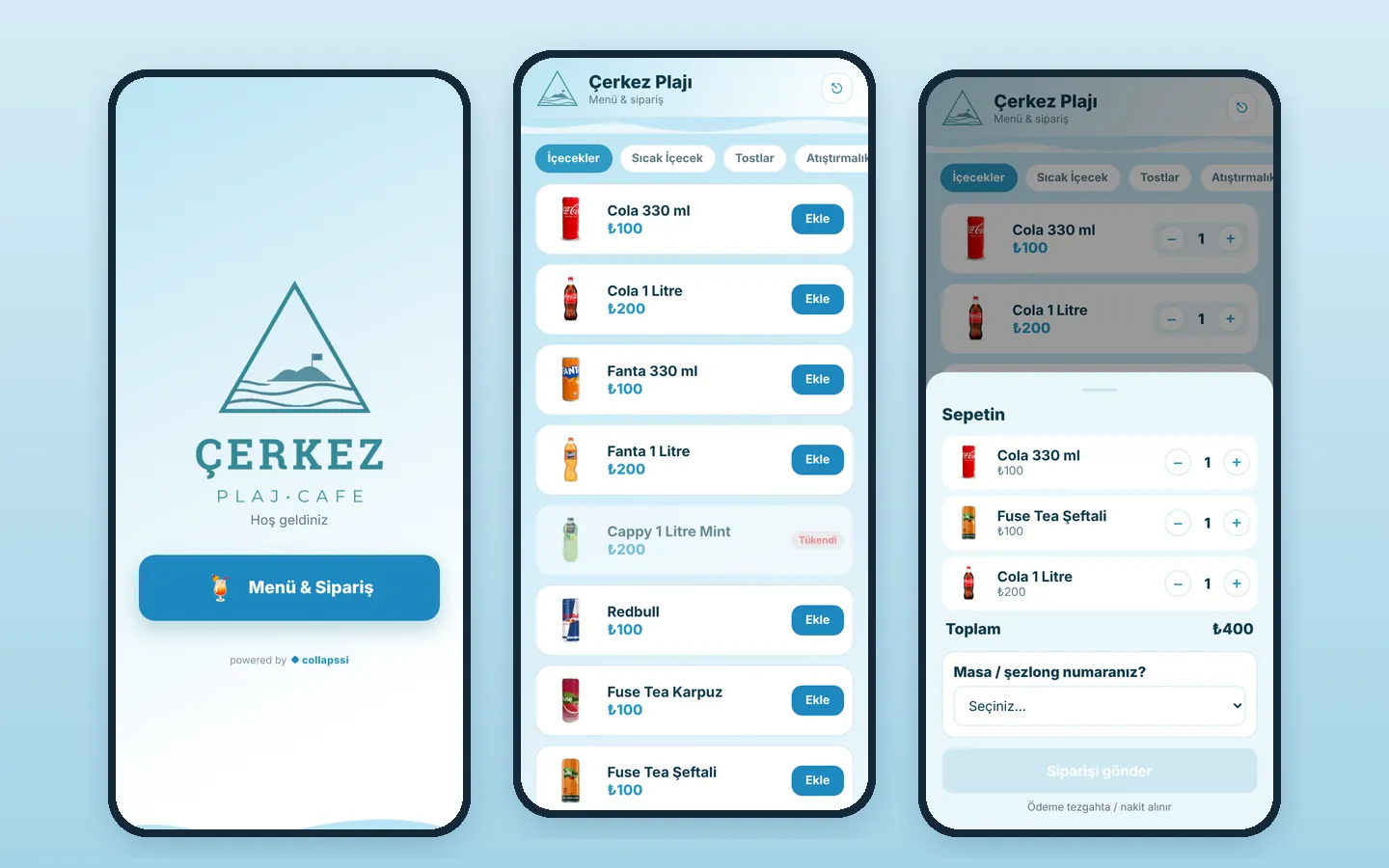
The Çerkez Plaj Cafe app: welcome screen, menu and basket
Client
Çerkez Plaj Cafe, beach and cafe
Guest side
Menu and ordering by QR code, no sign-up; payment at the counter
Management
Hidden entrance, staff PIN and an owner password for deletions
Panel
Orders, bills and accounts, report, products and recipes, two stores, spots
Spots
Tables, sunbeds, umbrellas and chairs, each with its own QR
Logo
Designed by Collapssi; the app's colours come from the logo

The screenshots were taken from a local copy of the app. The menu items and spots match the app; orders, bills, the people on customer accounts (marked "(örnek)", meaning sample), takings and stock figures are sample data. The dots in the PIN boxes of the flow illustration are only illustrative.

01

How is the management screen opened?

The welcome screen guests see has only the logo, a "Hoş geldiniz" (welcome) line and the "Menu & Order" button; there is no button leading to management. So a guest who scans the QR code never sees the panel. Staff open the panel like this:

  • 1. On the welcome screen, tap the Çerkez logo 5 times quickly in a row (if more than one and a half seconds pass between taps, the counter resets)
  • 2. The "Staff PIN" keypad opens; the 4-digit PIN is entered and a wrong digit can be corrected with the delete key. If it is wrong, the warning "PIN incorrect, try again" appears, and "Back" returns to the menu
  • 3. If the PIN is correct, the management panel opens on the orders screen
  • 4. The business is run with the 6 tabs at the bottom (Orders, Bills, Report, Products, Stock, Spots)
  • The panel is remembered on a phone once opened; the app opens straight into the panel until "Log out" is pressed
  • If a QR code is scanned on the same phone, the app still opens the guest screen with that spot selected
  • Deleting orders, bills, products and ingredients and recording waste also require a second, owner's password
Opening the management screen: tapping the logo 5 times, the staff PIN, the orders screen and the tabs at the bottom
02

What we built specifically for this business

We did not install an off-the-shelf menu program; we designed the app the way the owner wanted, by looking at how a day on the beach goes. Everything below was thought out and written for Çerkez Plaj Cafe:

  • We designed the logo (an island, a flag and waves inside a triangle; ÇERKEZ, PLAJ · CAFE) and derived all of the app's colours and wave drawings from it
  • Beach-specific spot types: tables, sunbeds, umbrellas and chairs, each with its own rent and coverage (a table comes with 4 chairs and an umbrella). The app has 8 tables, 30 sunbeds, 6 umbrellas and 12 chairs registered
  • A sunbed layout like a beach plan, and a "sunbed group" that puts several sunbeds on one bill (for families and groups of friends)
  • The first order from a QR code automatically opens that spot's bill and its rent; the waiter does not have to open a bill separately
  • One-tap sale buttons for the toilet and the shower and changing cabin fees
  • An add-on suggestion when a toast is added to the basket (for example Extra Potato Crisps)
  • Customer accounts for regulars who pay later: putting a bill on a saved person with one tap and settling everything at once
  • The counter's front store and the back store are separate; stock is kept by batch and expiry date, and sales take the oldest batch first
  • Toast recipes (sucuk sausage, kaşar cheese, toast bread): ingredients are deducted from stock automatically as items sell
  • A hidden entrance (5 taps on the logo), a staff PIN and a separate owner's password for deletions and waste
  • Against the noise of the beach: a chime that rings three times, a vibrating notification that stays until dismissed and a screen that does not go dark while the panel is open
04

Guests: menu and ordering by QR code

Every table, sunbed, umbrella and chair has its own QR code. When a guest scans it, the app opens straight to the menu with their spot selected; no sign-up, no download and no waiting for a waiter. They send their order and go back to the sea, and the order is brought to them.

  • The header shows the Çerkez Plaj Cafe name and a badge for the spot (for example Sunbed 7)
  • Category tabs: Drinks, Hot Drinks, Toasts, Snacks; each product with a photo, name and price
  • Products without a photo get an icon matching their name and a pastel background that always stays the same for that product (tea, coffee, soda, water, cola, toast, chips, crisps, sunflower seeds, ice cream, ayran and so on); if a photo fails to load, the icon is shown
  • A product that is out of stock shows "Sold out" and cannot be added; products marked "Unlimited", such as tea, never run out
  • When a toast is added for the first time, the app asks "Extra Potato Crisps on the side?"; "Yes, add" adds it with one tap. Add-on items do not crowd the menu list
  • A fixed "N items · View basket" bar at the bottom with the total
  • In the basket that slides up: + and - for quantities, the total and "Your table / sunbed number?"; when the guest comes from a QR code the spot is already selected
  • If the order is sent without a spot, the warning "Please choose your spot to order" appears; below it, the note "Payment at the counter / cash"
  • The "Order received!" screen: spot, order number, items, total and "We will bring it to your table when it is ready"; "Back to menu" for a new order
Menu screen: categories and products
Add-on suggestion after adding a toast
Basket and sunbed selection
Order received screen
05

Orders, sound alerts and counter sales

The first screen of the panel is orders. So that no order is missed while the phone sits in a pocket or on the counter on a noisy beach, we built the alert in several layers; counter sales and rents are also recorded from the same screen with a few taps.

  • A chime that rings three times for every new QR order; if the sound file cannot play, the phone generates a three-note sound itself
  • A "New order" banner at the top of the screen with the spot, items and amount; it stays 8 seconds and closes when tapped
  • Phone notification: stays on screen until dismissed, vibrates and renews with every new order; tapping it brings the app to the front or opens it
  • Because phone browsers block sounds that play by themselves, the first tap by staff unlocks the sound and asks for notification permission; a "Turn on / test notification sound" button
  • The app icon shows the number of waiting "New" orders; while the panel is open the phone screen does not go dark
  • Each order shows the spot, number, a QR or Manual label, the items, amount and time
  • The status moves on with one tap: New, Preparing ("Prepare"), Delivered ("Deliver")
  • "Active" and "All" views; a "No pending orders" screen when there is nothing waiting; deleting an order requires the owner's password
  • Manual sale window: "Where" (Counter / Takeaway or any table or sunbed), + and - in the product list, total quantity and amount; sold-out products are marked
  • Open-a-spot buttons (Table, Sunbed, Umbrella, Chair): the lowest free number is opened and its rent goes on the bill; a warning if no spot is free
  • The toilet and the shower and changing cabin fees are recorded as a sale with one tap, with a short confirmation message
Management panel: orders, bills and report
06

Bills: sunbed and table accounts

On the beach a family can rent several sunbeds together and order all day long. The Bills tab is made for that: the sunbed layout, open bills and closing in one place.

  • Sunbed layout: occupied sunbeds are blue with their bill number, free ones are clear at a glance
  • "+ Sunbed group": select several free sunbeds and open a single bill; the total rent is shown on the button
  • The first order from a QR code automatically opens the bill for that spot and adds the spot's rent; later orders join the same bill
  • On an open bill: "+ Add item" (a manual sale with the spot fixed), "Close" and "Delete" with the owner's password
  • With ⛓ two or more bills are merged; spots and orders come together on one account
  • When closing, a bill breakdown; changing the amount to collect automatically adds a discount or extra charge line
  • "Collect cash / at the counter" or "Put on account": choose a saved person with one tap or type a new name
Sunbed layout and open bills
Closing a bill and collecting payment
07

Customer accounts: guests who pay later

For guests who come every day and settle at the end of the week or month, there are customer accounts. A bill moves to the person's account with "Put on account", and when the money comes in it closes with one tap.

  • Per person: the number of open bills, each bill's spot and amount, and the total owed; a "No open accounts" screen when there are none
  • "Collect (paid)" closes all of that person's bills together
  • Counters for pending items on the Bills and Accounts tabs
  • People who have been put on account before appear as ready buttons in the closing window; the name is not typed again
Customer accounts
Customer accounts
08

Report

The Report tab shows the takings for the chosen period, the day-by-day trend and the best-selling products; at the end of the day the owner sees what was sold on one screen.

  • Period: Today, 7 days, 30 days, All
  • Total takings, number of orders and items sold
  • Daily takings history (Today, Yesterday and dates with day names)
  • Best-selling product and a ranking of quantity and amount per product
Report: 7-day takings and daily history
09

Products and recipes

The menu is managed from the panel: products are added, prices changed, photos chosen, and the change appears on every phone instantly. Prepared items such as toasts get a recipe; as they sell, ingredients are deducted from stock automatically.

  • The product list shows category, price, front and back store quantity, stock status (Sold out, Critical stock, Running low, Enough) and the expiry date of the batch that goes out first
  • New product: name, category, price, opening stock and expiry date; later deliveries are entered batch by batch from Stock
  • "Unlimited" mark: no stock is kept for items made on the spot, such as tea and coffee, and "Sold out" never appears
  • A photo address or a choice from ready-made photos, with a preview; a warning if the name is left empty
  • Recipe: ingredient and quantity lines, for example sucuk sausage, kaşar cheese and toast bread for a Mixed Toast
  • When a product with a recipe sells, a "usage" entry with the spot and order number goes into the ingredient movements
  • Deleting a product requires the owner's password
Product list
Product list
Editing a product and its recipe
10

Stock and ingredients

Stock is kept in two places, the front store (counter) and the back store, batch by batch. Every batch has an expiry date; sales and transfers take the oldest batch first, so expired products do not stay on the shelf.

  • Front Store / Back Store view, batches (quantity, expiry and entry date) and a "goes out first" mark
  • Critical stock alert: products running low or out in the front store and batches expiring within 3 days or already expired; a count badge on the Stock tab
  • Stock-in window: new batch, store, quantity, expiry date and a note
  • Transfer between stores: the available quantity is shown, the oldest batch is moved and its expiry date is kept
  • Waste / removal entry: a reason is written and the owner's password is required
  • Counters for stock in today, sold today and critical stock
  • Colour-labelled stock movements: In, Sale, Waste, Transfer; with date, store, expiry date and note
  • Ingredients: units of slice, piece, gram, kg, litre, pack and box, and a low-stock threshold for each ingredient
  • Ingredient purchase: quantity and total amount are entered, and the latest unit price is calculated automatically
  • Ingredient usage or waste deduction; today's and total purchase amounts, the number of ingredients running low and ingredient movements
Stock: critical stock and batches
Ingredients
Ingredients
11

Spots and QR codes

All of the business's seating is defined in the panel; the app has 8 tables, 30 sunbeds, 6 umbrellas and 12 chairs registered. The app generates each spot's QR code itself, with no need for a separate program or files for a print shop.

  • Table, sunbed, umbrella and chair types; each type has a rent price and coverage (table: 4 chairs and an umbrella; sunbed, umbrella and chair: single)
  • Adding a new spot by typing its number (the same number cannot be added twice), and removing one if needed
  • Every spot has its own QR code; tapping it enlarges it and says "Stick this QR on the sunbed"
  • Scanning the QR opens the menu with that spot selected; orders and the bill are linked to that spot
Spots and their QR codes
The QR code of Sunbed 7
12

Security, installing on the phone and instant sync

The app opens as a single page and can be installed on the phone's home screen. The phone at the counter, the waiter's phone and the guest's order are connected to the same data, and permissions come in two levels.

  • All business data is kept as one record in the cloud (Supabase); changes are saved within half a second
  • Other devices are updated through a live change subscription: an order, bill or stock change made on one phone appears on the others right away
  • On first launch the starter menu and spots are set up automatically
  • Installable app (PWA): home screen icon, full-screen portrait launch, home screen icon and title for iPhone
  • Pinch zoom is off and the layout fits notched screens; on large screens it is centred at phone width
  • Product photos and the notification sound are built into the app, so the menu opens quickly
  • Switching to management needs the hidden tap and the staff PIN; deleting orders, bills, products and ingredients and recording waste also require the owner's password (🔒)
Welcome screen
Welcome screen
Staff PIN screen
Staff PIN screen

Planning a similar project?

Tell us what you need; we will define the scope, timeline and cost together. The first consultation is free.

Tell us about your project