Client project · Stock and sales tracking

Yapı Depo

Yapı Depo is a browser-based stock and sales tracking app we built for a building supplies shop and its warehouse. At the till, items are sold quickly by scanning a barcode or searching; materials, stock, purchase and sales invoices, stock counts, barcode labels, accounts of customers who buy on credit and profit reports are all managed in one app. When a photo or PDF of an invoice is uploaded, AI reads the line items, matches them to materials and adds them to stock once approved. The app is used by the shop owner and the cashiers; each person only sees what their role allows, and this limit is also locked on the server. It works comfortably on both computer and phone.
  • Browser-based web app (React, Tailwind)
  • Supabase (database, sign-in, server functions)
  • Netlify
  • AI invoice reading
  • Code 128 barcode labels
  • Excel (CSV) import and export
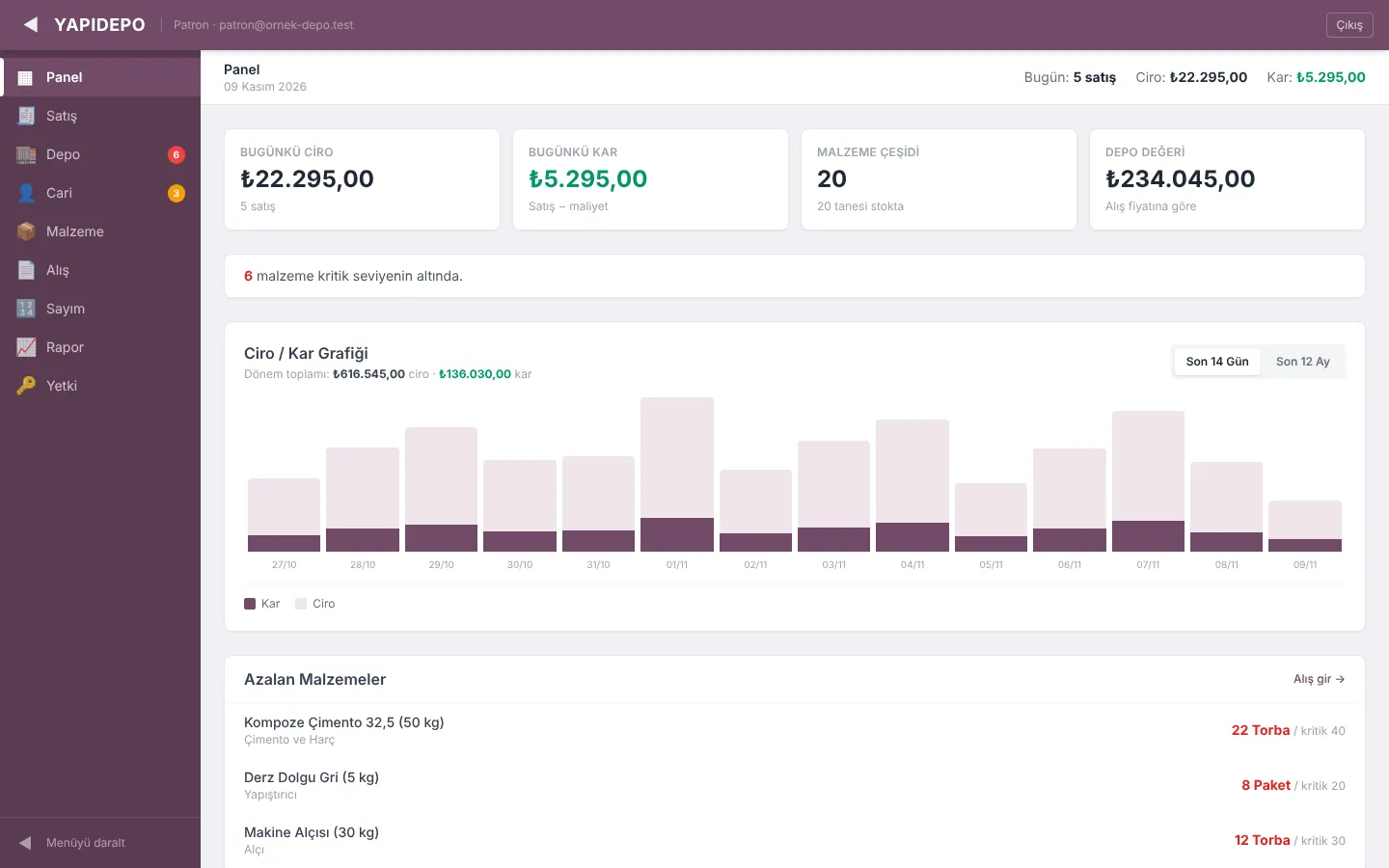
Yapı Depo dashboard: today's revenue and profit, stock value and the last 14 days chart
Users
Shop owner and cashiers
Sales
Barcode checkout, Cash, Card and on account, printable receipt
Invoices
Purchase and sales invoices read by AI from a photo or PDF
Stock
Critical level, stock count, barcode labels, Excel import
Reports
Daily, monthly, yearly profit and loss and sales per material
Permissions
Owner and cashier; limits locked on the server

The screenshots were taken from a local copy of the app with fictional sample data. Materials, prices, barcodes, revenue and profit figures, customer and supplier names (marked "(örnek)", meaning sample), invoices and phone numbers are not real; we did not sign in to the live system. The shop's name in the top corner was replaced with the app's name (YAPIDEPO).

01

Dashboard: the day at a glance

When the app opens, the shop's day is on one screen: sales through the till, profit, the value of the goods in stock and the materials running low. The summary figures are calculated on the server, so the screen opens quickly even with many materials. On the phone the menu moves to the bottom and the cards sit two by two.

  • Today's revenue and number of sales, today's profit (sales minus cost; owner only), number of materials and how many are in stock
  • For the owner, the stock value (total of the goods in stock at purchase price); for the cashier, the total quantity in stock instead
  • Count of materials at their critical level and a Low Stock list; the "Enter purchase" shortcut goes straight to the purchase screen
  • Revenue and profit chart for the last 14 days or the last 12 months (owner only)
  • On every screen, a strip with today's number of sales, revenue and (for the owner only) profit
  • Short notices after each action, such as "Sale saved", "Material updated", "Import complete"
  • Collapsible side menu on the computer; the choice is remembered in the browser
  • Bottom tab bar on the phone; menu badges for low stock (red) and customers who owe money (yellow)
Dashboard: today's revenue, profit, stock value and revenue / profit chart
Dashboard and bottom tab bar on the phone
02

Fast checkout and sales receipt

At the till you just scan a barcode or type the material's name. Scanning the same item again increases the quantity; the sale is finished with the Cash or Card button and the receipt is printed.

  • Scan a barcode and press Enter, or search by name; result cards show price, unit and stock
  • Scanning the same material again adds one to its quantity in the basket
  • Customer or building site name on the basket; if left empty the sale is saved as "Retail"
  • Sale by Cash or Card
  • Warnings for out-of-stock materials and for quantities above stock
  • Sales receipt: receipt number, date, payment method, customer, items, VAT included in the prices and grand total
  • A note on the receipt that it does not replace an official e-invoice; reprint with "Print Last Receipt"
Fast checkout: barcode scanning, material cards and basket
03

Upload a sales invoice: stock goes down, the customer is charged

There is no need to type in the invoice the shop issued to a customer. A photo or PDF of it is uploaded; AI reads the line items and the customer's details, the items are matched to materials in stock, and stock is reduced after approval.

  • Upload a photo or PDF (up to 15 MB); on the phone a photo can be taken directly
  • Details read: invoice number, line items (quantity, unit, unit price), customer's name, tax number, tax office, address and phone
  • Items are matched to materials in stock automatically; each line shows the stock and a "not enough" warning if it falls short
  • Payment status: Paid or On account
  • A registered customer is found by tax number or name; otherwise a new customer account is created from the invoice details
  • "Approve → Deduct from Stock": materials leave stock and, on account, the amount is posted to the customer's balance as debt
Sales invoice read: On account selected, customer matched, a low-stock warning on one line (sample document)
04

Purchase invoices: from a photo or by hand

To book goods from a supplier, uploading a photo of the invoice is enough. AI reads the supplier, invoice number and line items; items that exist in stock arrive already matched, and new materials are created for the rest. The invoice can also be entered by hand.

  • Read from a photo or PDF: supplier, invoice number, line items, quantity and unit purchase price
  • Item names are matched to material cards in stock automatically (green boxes)
  • For an unmatched item, pick a material from the "Match" list or create a new material card
  • A sale price suggested from the purchase price for new materials; quantities and prices can be corrected before approval
  • Invoice total and "Approve → Add to Stock"
  • Manual entry: supplier, invoice number, an existing material or a new material name and unit, quantity, unit cost, sale price; "Save → Add to Stock"
  • Recent Invoices list: supplier, invoice number, date, amount and items
Purchase invoice read: three lines matched, a Match selector and suggested sale price for the fourth (sample document)
05

Material cards and bulk work

A building supplies shop can carry hundreds of items. The material list is searched and paged on the server; Excel import, bulk price changes and backups are done from the same tab.

  • Material card: name, barcode (can be scanned in), category, unit, purchase and sale price, critical stock level
  • 11 units that suit building supplies: piece, bag, m², m³, kg, litre, pack, roll, metre, box, sack
  • Opening stock (the quantity on hand) for a new material
  • Stock cannot be changed by hand on the card; it only changes through a purchase invoice, a sale or a stock count
  • Server-side search and paging in groups of 50; the list stays fast even with many materials
  • A material with past sales or purchases is not deleted but deactivated (reports stay intact); it can be found with "show inactive materials" and activated again
  • Excel import: paste rows or choose a CSV file; the separator (tab, semicolon, comma) and column headings are recognised automatically, and columns can also be mapped by hand
  • A preview first, then "Approve → Import"; a material already in the system does not get a new record, its existing card is updated; at the end it shows how many materials were added and updated
  • Bulk price update: sale price, purchase price or both; increase or discount by percentage or amount; filter by category and by material name; round to whole numbers, to multiples of 5 or 10, or keep the cents; preview and a confirmation box before applying
  • Backups: material list, sales, account transactions and purchase invoices separately, as files that open in Excel; large data is downloaded in parts with a progress percentage
  • A material backup can be loaded back with the Excel import
Material list: purchase price, sale price, critical level and stock
06

Barcode labels for the shelves

Barcode labels for shelves and products are printed from the app. Materials are chosen from the list, the number of labels and layout are set, and the labels are arranged on A4 paper; scanning the same barcode at the till puts the material in the basket.

  • Select one or more materials in the list and choose "Print Barcode Labels"
  • Code 128 barcode, material name and barcode number
  • 1 to 50 labels per material
  • 2 (large), 3 (medium) or 4 (small) columns per page
  • Optional sale price and unit (e.g. ₺235.00 / Bag)
  • Materials without a barcode get their stock code printed; a sample label preview before printing
Print Barcode Labels window: Code 128 preview, number of labels, columns and price option
07

Stock list and stock counts

The cashier answers a customer's "do you have it, how many?" from the Stock tab. A stock count brings the system in line with the real quantity on the shelf.

  • Stock tab: search by material or barcode; category, sale price and stock, with stock at the critical level in red
  • Only the owner sees the purchase price column; the cashier sees stock and sale price
  • Stock count: each barcode scan adds one to the counted quantity, or the real quantity is typed in
  • Each line shows system stock, counted quantity and difference; below, how many items were counted and how many came out over or short
  • "Apply Count → Correct Stock" only corrects the materials added to the list and leaves the rest untouched
  • Past Counts: date, number of corrected items, increases and decreases
Stock count: system, counted and difference columns, Past Counts
08

Customer accounts: credit sales, payments and statements

Customers who buy on credit have their own account. Total receivables and the number of customers who owe money are shown at the top, and each customer's transactions and balance open with one click.

  • At the top: total receivables, number of customers who owe money and number of registered customers
  • Customer search by name or tax number and a balance list
  • Customer details: tax or ID number, phone, address and balance
  • The customer account is created automatically when their first sales invoice is processed
  • Payments: a partial amount or the whole balance with one tap
  • Account transactions: sales invoice, return / cancellation and payment
  • Printable account statement: debit, credit and running balance in date order; the remaining debt or credit at the end
Customer account: balance, payment and transactions
09

Reports and receipt cancellation

The shop owner sees daily, monthly and yearly profit and loss, how much of each material was sold and which receipts were issued. A wrong receipt can be cancelled and the goods return to stock.

  • Daily, monthly and yearly profit and loss: revenue, cost, profit, number of receipts and units sold
  • When a period is selected: quantity sold, revenue and profit per material
  • The day's receipt list: time, items, customer, payment method and amount
  • Reprint a receipt
  • Confirmed cancellation: an optional reason is written, materials are added back to stock and the cancelled receipt stays marked in the list
Daily profit and loss, sales per material and receipt list
10

Owner and cashier: everyone sees their own work

Several people can work at the till. Each one signs in with their own email and password, and the owner decides with one tap who sees what. The limits are not only hidden on screen but also locked on the server.

  • Sign In / Sign Up with email and password; sign-up sends a confirmation link by email, and error messages are in Turkish (wrong password, already registered and so on)
  • Everyone who signs up starts as a cashier automatically
  • Permissions tab: user list and a one-tap Owner / Cashier choice
  • Owner: everything, including reports, profit and loss, purchase invoices, material cards, stock counts, cancelling sales and granting permissions
  • Cashier: Dashboard, Sales, Stock and Accounts tabs; sells, issues receipts, sees stock, takes payments
  • Profit, cost, purchase prices and reports are closed to cashiers; even if they try to change a material card, a purchase invoice, a count or a cancellation, the server refuses
  • Invoice reading requests go to the server function with the user's session; the AI key is never in the browser
11

What we built specifically for this business

Yapı Depo is not an off-the-shelf package; it was designed around the daily way a building supplies shop works. The main things we built at the shop's request:

  • Units that suit building supplies: bag, m², m³, kg, litre, roll, metre, box, sack
  • A building site name next to the customer at the till; sales without a name are saved as "Retail"
  • The shop's credit sales routine: Paid / On account on sales invoices, debt posted to the customer's account, partial payments and printable statements
  • Working from the invoices the shop already has: reading purchase and sales invoices from a photo or PDF into stock, and creating the customer account from the sales invoice details
  • Owner / cashier split: the cashier does not see profit, cost or purchase prices but can check stock in the Stock tab to answer customers
  • Moving over from the old Excel list: an import that recognises columns automatically, plus opening stock
  • Code 128 barcode labels for the shelves, laid out on A4, with or without price
  • VAT included shown separately on the sales receipt, with a note that the receipt does not replace an official e-invoice
  • Stock that only changes through purchase, sale and count records (no editing stock by hand), with a count history

Planning a similar project?

Tell us what you need; we will define the scope, timeline and cost together. The first consultation is free.

Tell us about your project