Client project · Optical store

Fatihcan Optik

Fatihcan Optik is an optical store. Following the owner's requests, we brought the store's daily work together in a single management panel: sales are made at the till by scanning barcodes, credit sales keep a down payment and due date, the e-invoice for an invoiced sale is created in Mysoft automatically, each customer's prescription and balance sit on their card, supplier e-invoices are pulled from Mysoft and booked into stock in a few clicks, and stock counts are done with a barcode scanner. At the end of the month, revenue, costs, expenses and net profit are ready as a report. The panel is open only to users the store sets up; nobody can sign up from outside.
  • Next.js 14
  • TypeScript
  • Tailwind CSS
  • Prisma
  • PostgreSQL (Supabase)
  • NextAuth
  • Mysoft e-Invoice API
  • Netlify
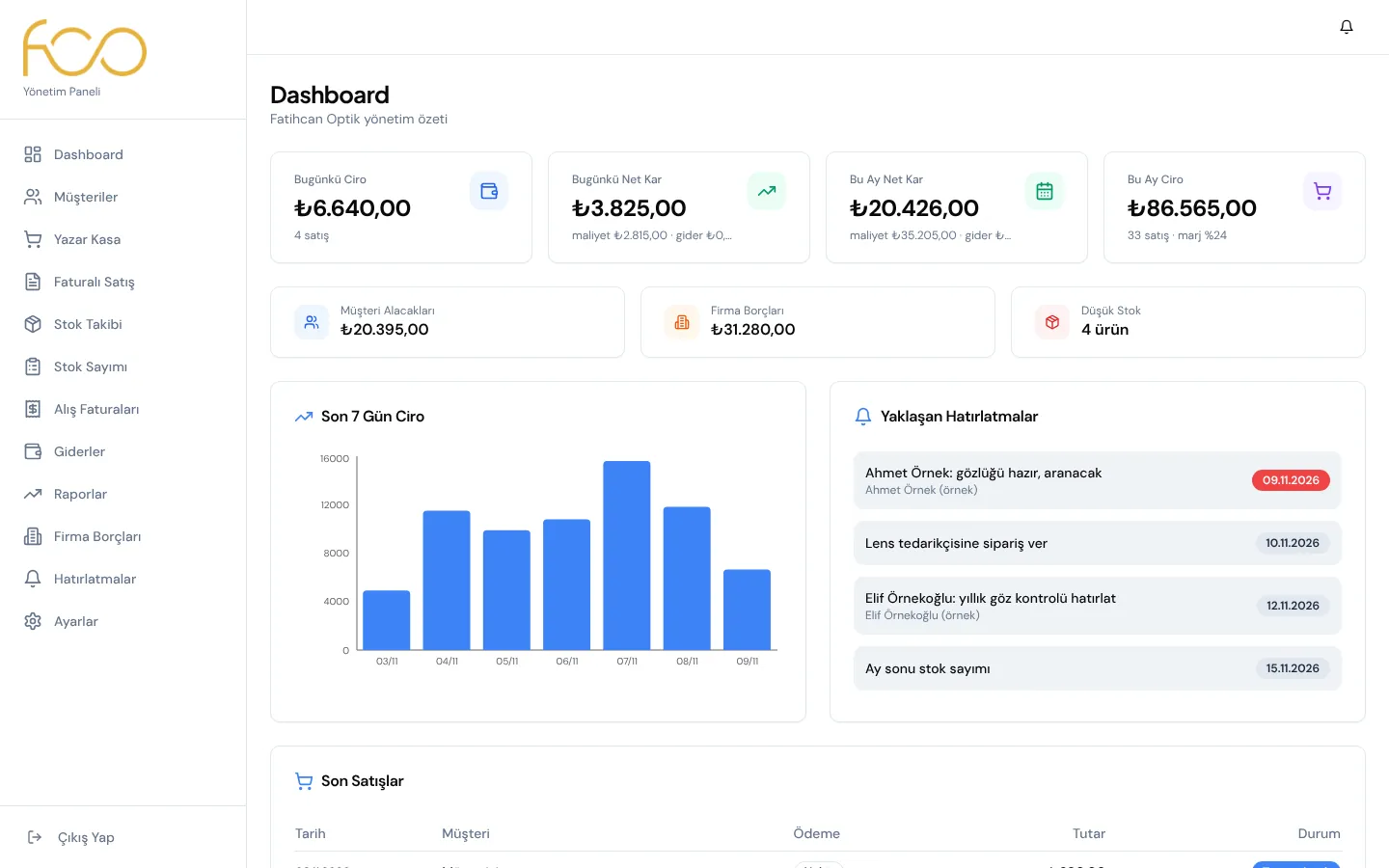
Fatihcan Optik management panel: today's revenue, net profit, receivables and upcoming reminders
Industry
Optical store
Used on
In the browser; on computer, tablet and phone
Sales
Point of sale, credit sales and invoiced sales
e-Invoice
Mysoft: e-Invoice, e-Archive and incoming invoices
Stock
Barcode scanner, camera and barcode stock counts
Access
Only users set up by the store

Screenshots were taken from a local copy of the app with fictional customer, supplier and sales data (names marked (örnek) and numbers starting with ORN are examples). Revenue, profit, expense and debt figures and the invoice statuses of invoiced sales are examples; no invoices were sent to Mysoft for these images.

01

The day at a glance, with reminders

When the panel opens, the owner sees how the day and the month are going right away. The figures are not just sales totals: net profit is calculated after product costs and expenses.

  • Today's revenue and net profit; this month's revenue, net profit and profit margin
  • Customer receivables, supplier debts and the number of products running low
  • Revenue chart for the last 7 days, recent sales and upcoming reminders
  • Reminders can be linked to a customer (for example, calling a customer whose glasses are ready)
  • Once, daily, weekly or monthly repeats; low, medium or high priority
  • Done mark and a list of past reminders; the bell in the top bar and the number in the menu show unread ones
Management panel: summary of the day and the month
02

Barcode point of sale

At the till, products are searched by name or barcode; a product scanned with a USB barcode scanner drops straight into the cart, and without a scanner a phone or tablet camera reads the barcode. Each sale is saved in one step: if something goes wrong while stock is reduced, the sale is not left half done.

  • Change quantity and price in the cart; stock, quantity, price and payment are checked before saving
  • Pick a customer or add a new one without leaving the till (name, phone, date of birth)
  • Payment in cash, credit card, bank transfer or on credit
  • "Which prescription?" window: the box barcode belongs to the model, so when several prescription lenses share a barcode the right one is chosen
  • Daily total split into cash, card, transfer and credit; today's sales list
  • Made-to-order sales: if the setting is on, items not in stock can be sold, stock goes negative and corrects itself when the invoice arrives
  • The product cost at the moment of sale is stored, so past months' profit stays correct even if purchase prices change later
Point of sale: products, cart and payment
03

Credit sales, down payments and cancellations

In an optical store, part of a pair of glasses is often paid up front and the rest later. When credit is selected at the till, the down payment and the date the rest is due are entered too; the debt is written to the customer's card automatically.

  • A customer must be selected for credit sales; the debt record opens with the sale
  • "Paid now (down payment)" field with "No down payment" and "Half" shortcuts
  • Remaining debt is calculated instantly and a due date is set with "When will the rest be paid?"
  • Overdue debts can be filtered separately in the customer list
  • Cancelling a sale: stock is restored and a stock movement is written for each product
  • Debt created by a credit sale is removed on cancellation; if a payment was already taken, cancellation is blocked so no money goes missing
  • Cancelled sales drop out of revenue and profit, and the reason for cancellation is kept
Credit sale at the till: down payment, remaining debt and due date
04

Invoiced sales and e-invoicing

There is a separate "Invoiced Sales" screen for sales that need an invoice. When the sale is completed, the invoice is created automatically in Mysoft, the store's e-document provider; nobody has to type the invoice details anywhere else.

  • Products are added by name, barcode or camera; the buyer is picked from saved customers or a new buyer is created
  • New buyer: individual or company; 11-digit national ID and 10-digit tax number are checked; surname is required for individuals and trade name for companies
  • Tax office, province, district, address, phone and email; new buyers are saved to the customer list and a known tax number is reused
  • Mysoft is asked whether the buyer is registered for e-Invoice: if so an e-Invoice is issued, otherwise an e-Archive invoice
  • Series code from the settings or Mysoft's default; the buyer is opened as an account in Mysoft
  • Each sale in the list shows its invoice status: Draft created, Sent to the tax authority, Invoice failed or No invoice
  • A sale whose invoice failed can be invoiced later with a single "Issue invoice" button
  • If an invoiced sale is cancelled, the issued document stays with the tax authority; it is cancelled from the Mysoft panel
Invoiced sales list: draft created, sent to the tax authority and no invoice statuses
05

Mysoft connection and safe settings

At the store's request we built the Mysoft connection carefully: the system can create invoices but cannot delete them, cancel them or send them on its own. Credentials stay on the server only and are never shown on screen.

  • Protection in the code: every request that changes a document, such as cancelling or deleting an invoice, sending a draft to the tax authority or accepting or rejecting an incoming invoice, is stopped before it reaches the server
  • The only exception is the store's own choice: with "Send directly to the tax authority" on, the invoice is issued officially together with the sale
  • Invoice mode: "Keep as draft" (checked and sent from Mysoft) or "Send directly to the tax authority"
  • e-Invoice and e-Archive series codes; if left empty, Mysoft's default series are used
  • "Allow selling items not in stock" switch (made-to-order sales)
  • Automatic processing of incoming invoices: Off, Automatic for known products or Always automatic
  • Secure sign-in (OAuth 2.0); the 5-minute access key is renewed before it expires, and a rejected request is renewed once and retried
  • A "Test connection" button shows whether the connection works or what the error is
Settings: Mysoft e-invoice connection, series codes, invoice mode and automatic processing
06

Purchase invoices: pull from Mysoft, match, approve

Supplier e-invoices are never typed in by hand. "Pull from Mysoft" lists incoming invoices, or XML files are dragged and dropped; lines are matched with products in stock automatically, and on approval stock, purchase price and supplier debt are updated together.

  • Pulling from Mysoft: last 1, 3 or 6 months, this year or any date range; invoices already saved are marked "Already saved"
  • Uploading files: UBL-TR XML exports from programs such as Uyumsoft, Logo, Nilvera, Parasüt and Foriba
  • Matching looks at the barcode first, then at name similarity; unmatched lines are chosen by hand or opened as new products
  • The same invoice uploaded twice is rejected; the supplier is found by the name on the invoice or created
  • On approval: stock entry, purchase price update and, optionally, a supplier debt with a due date
  • Approve pending invoices in bulk with "Select all"
  • With automatic processing on, invoices with known products, or all invoices, go into stock by themselves; with "Always automatic" new products on the invoice are also created automatically
  • Bills for internet, electricity, natural gas, shipping, accounting and similar become "service / expense invoices": they do not go into stock and are recorded as expenses
  • Product details from the invoice: colour from the name, category guess (prescription lens, frame, sunglasses, contact lens, accessory), shipping and service lines separated
  • Lens prescription is read from the supplier code (for example MAR+0300-075 as +3.00 / -0.75)
Window for reviewing and approving a purchase invoice
07

Barcode stock and prescription lenses

The stock list shows each product's category, colour, barcodes, purchase and sale price, remaining quantity and supplier. Products running low appear as a warning at the top of the page; each product has its own minimum stock level.

  • Category and colour filters, product image (file or link) and VAT rate
  • Manual stock in and out; every change is written to the stock movement log
  • The supplier's stock code and the box barcode (GTIN) are kept together; "Complete barcodes" fills in missing ones
  • Reading barcode, serial number, batch number and expiry date from the 2D codes on eyewear products
  • SPH, CYL, axis and thickness fields for prescription lenses; prescription lists in 0.25 steps
  • When an unknown barcode is scanned: define the product right away or link the barcode to an existing product; the last lens details are remembered when entering lenses one after another
  • A product opened from an invoice under a stock code asks once, on its first scan, for its real name, sale price and prescription
  • Shipping and service lines do not hold stock
  • Bulk product import from Excel or CSV; Turkish and English column headings are recognised
Stock tracking: low stock warning and product list
08

Stock counts with a barcode scanner

Shelf counts are done by scanning barcodes, not with pen and paper. Scanning the same product again increases the count; the difference between the system quantity and the counted quantity shows on every line, and stock is corrected in one step when the count is finished.

  • Start a count: all products or one category, with a name and notes
  • Count with the scanner, the camera or "Add manually" for products without barcodes
  • Boxes for items, units and number of differences; each line shows system quantity, counted quantity and difference
  • Correct the counted quantity on the line or remove the line
  • "Reset unscanned items" option, stock correction on completion and a result report
  • Past counts and cancelling an open count
  • Barcode Test screen: shows what the scanner sends, whether it adds Enter and whether 2D codes and lens prescriptions can be decoded
Stock count: scanned products, system quantities and differences
09

Customer cards with prescriptions

Each customer's card holds their prescription, invoice details, balance and everything they have bought. In the customer list, customers with debts and overdue payments can be filtered separately.

  • SPH, CYL and AX values for the right and left eye, plus pupillary distance (PD)
  • Invoice details: national ID or tax number, tax office, company name, province and district
  • Date of birth and notes
  • Credit balances and partial collection with "Take payment"
  • Purchase history: date, products, payment method and amount
Customer card: prescription, balance and purchase history
10

Profit, loss, expenses and supplier debts

Reports show what the store really earns: revenue, product cost, expenses and net profit in one chart and in a period-by-period table. Expenses and supplier debts are kept in the same panel.

  • Daily, weekly, monthly or yearly; this month, last month, last 3 months, this year or any date range
  • Net profit and margin, change compared with the previous period, payment method breakdown
  • Profit by category and the most profitable products; export the report to Excel
  • Expenses: types such as rent, electricity, staff, social security and tax, shipping, advertising and accounting; payment method and a monthly recurring flag
  • Period filter and breakdown by expense type
  • Supplier debts: total, paid and remaining debt per supplier and per invoice; overdue items
  • Add debts manually; payments in cash, card or transfer are allocated starting from the oldest invoice
  • Supplier setting: invoices from a supplier outside the business do not go into stock and are recorded as expenses
Profit and loss report: period chart and period details
11

Security and everyday use

The panel is a tool used inside the store every day. That is why we kept sign-in closed, wrote error messages in plain language and made sure it is comfortable to use on a phone too.

  • Sign-in only with users set up by the store; no public sign-up and a session check on every action
  • Company details (name, phone, address, tax number) and password change in the settings
  • Technical errors are translated into plain Turkish (connection, session, missing surname or trade name, series code and so on)
  • Slide-out side menu on phones and tablets; the panel can be added to the home screen like an app
  • When a new version is published, the error from an old page left open recovers by itself
  • A consistent design that belongs to the store, with the Fatihcan Optik logo, icons and sharing image
  • Hosted on Netlify with a health check address that shows the system is running
12

What we built specially for this business

This panel is not an off-the-shelf till program; it was written step by step around how the owner works and what he asked for. Some of the things we built specially for Fatihcan Optik:

  • Prescription fields made for an optical store: SPH, CYL, AX and PD for the right and left eye on the customer card
  • Stock structure for prescription lenses: a "Which prescription?" choice at the till and during counts, SPH / CYL / axis / thickness fields, reading prescriptions from supplier codes
  • Reading the 2D codes on eyewear products and a Barcode Test screen to check the scanner
  • Category guessing for optical products (prescription lens, frame, sunglasses, contact lens, accessory) and colour detection from the name
  • A connection made for Mysoft, the store's e-document provider: pulling incoming invoices, checking e-invoice registration, opening accounts, draft or direct invoices
  • At the store's request, every Mysoft action that changes a document is switched off in the code
  • Three levels of automatic processing for incoming invoices; the store picks the one it wants
  • Made-to-order setting: sell an item not in stock and let stock correct itself when its invoice arrives
  • Down payment and due date on credit sales; debts with payments already taken are protected on cancellation
  • "Do not keep stock, record as expense" setting for suppliers outside the business; service bills turn into expense records
  • Products opened from invoices under a stock code get their real name on their first scan
  • The store's request for a closed panel: no public sign-up, users are set up by hand

Planning a similar project?

Tell us what you need; we will define the scope, timeline and cost together. The first consultation is free.

Tell us about your project